
Your calendars in one place, and the time around your meetings rather than just the meetings themselves.
Plans is empty until you connect something. Open Settings, choose Connected Accounts, and tap the plus. Google, Outlook and Apple all work the same way: you sign in with that provider, and it gives the app access to your calendars. The app reads your events. It can also add busy blocks to a calendar, so your other commitments show there. Calendar Settings controls that for each calendar.
You can also subscribe to a published calendar feed by URL, which is how most conference schedules and shared team calendars are distributed.
Connect more than one. The whole point of this screen is seeing your work calendar and your personal one in the same day, so a dentist appointment stops being invisible when someone books over it.
Once an account is connected, tell the app what each calendar on it is. Open Settings, choose Calendar Settings, then open the account under Calendar Accounts and open a calendar.
Designation says whose time the calendar holds: Personal, Practice, or Client. Choose Client and you pick which client it belongs to. The designation sets how the calendar's events are categorized, which drives their color and how focus time is detected.
Two switches under Busy Mirroring decide how the calendar takes part in showing busy time. Read this calendar takes busy time from it. Mirror busy time here lets the app write the busy time from your other calendars into it. Turn the second one off for a calendar you would rather the app never wrote to.
Some calendars, often a client's, refuse changes from apps. For those the screen shows Busy Invitations in place of the mirror switch: enter the address for that calendar, and busy time is sent there as an invitation.
A meeting is rarely just the meeting. There is the half hour beforehand where you read the deck, and the twenty minutes afterwards where you write down what you agreed.
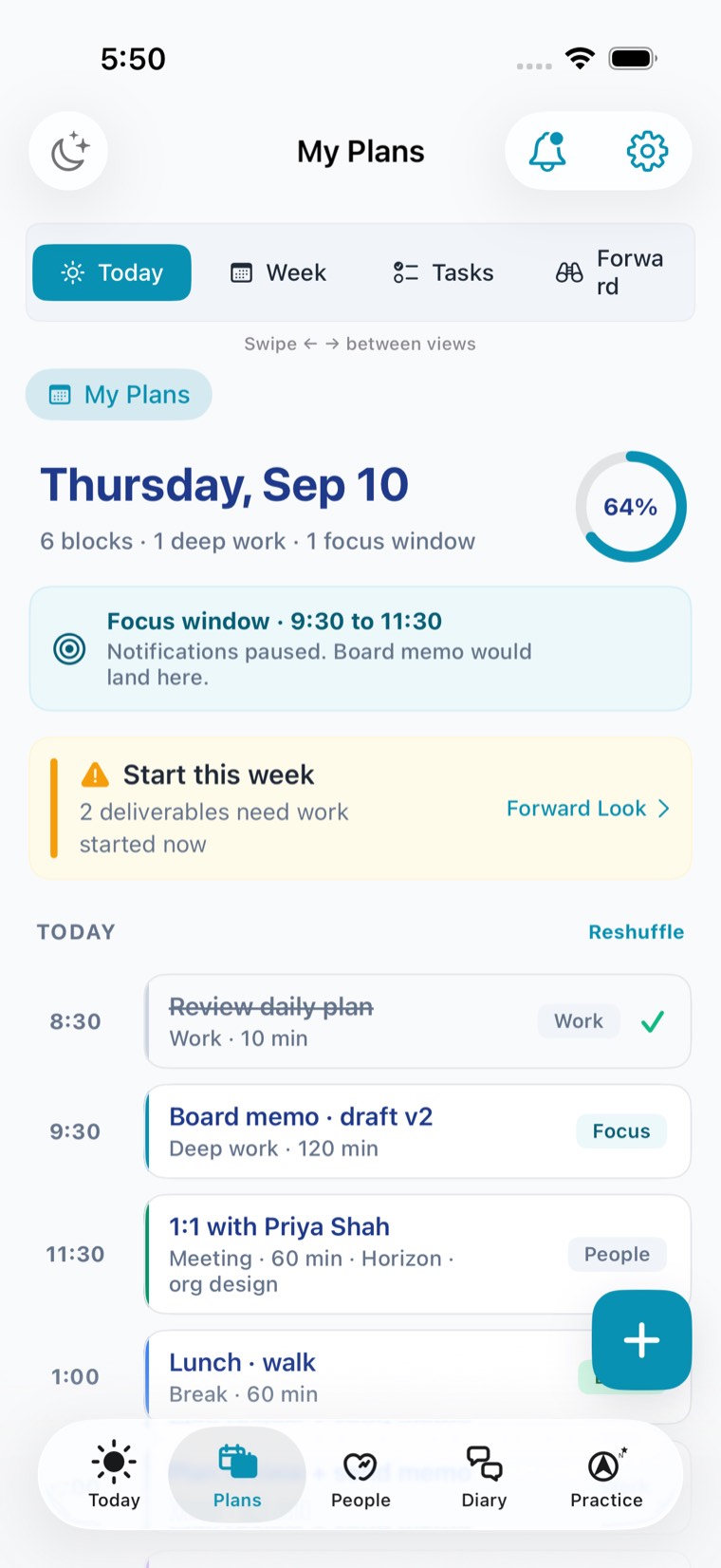
My Plans puts that time on the calendar as its own block, so when someone looks at your availability the preparation is already spoken for. In the screenshot above, the deep work block sitting before the one-to-one is exactly this.
Travel works the same way. A meeting with a location gets the journey either side of it, so you are not the person arriving breathless.
If you keep two calendars, each one can only see its own commitments. Your work calendar does not know about the Saturday your family calendar has claimed, so it offers the slot anyway.
With mirroring on, which it is unless you turn it off, a commitment in one calendar writes a matching busy block into the others. The copy carries no title, no attendees and no notes, only the time. Somebody looking at your work calendar learns that you are unavailable and nothing else.
The source calendar is never written to. Mirrors only ever travel outward, to the calendars that would otherwise double-book you.
Some calendars, often a client's work calendar, will not let an app write to them. My Life Practice cannot put a busy block there directly. It sends that calendar a private invitation instead, titled with your busy label and nothing else, and the invitation holds the time.
Two things have to be set, and both are required. First, in Calendar Settings, choose an account under Send invitations from. It has to be a Google or Microsoft account you have connected. Second, open the calendar that refuses changes and enter, under Busy Invitations, the address its invitations should go to.
If either one is missing, nothing is sent, and the app says so: Calendar Settings shows "Busy invitations aren't being sent", and the calendar itself shows "Not being sent".
Last, set that work account to accept invitations from that one sender automatically, so the block appears without you accepting each one. Calendar Settings has the steps for Google and for Microsoft under How to auto-accept busy invitations. Accept from that sender only, never from everyone.
Test before you rely on it. Until you turn on Send invitations at full rate, the app sends only a few invitations, slowly, so you can check that they arrive on the right calendar and are accepted.
The switch is Mirror busy time across calendars, at the top of Calendar Settings. With it off, no busy blocks are written to any calendar and none are removed: the blocks already on your calendars stay where they are. Your settings for each calendar are kept, so turning it back on picks up where it left off. To stop mirroring into one calendar only, open that calendar and turn off Mirror busy time here.