
See how My Life Practice works with realistic sample data, before you connect a calendar or type anything of your own.
Demo mode fills the app with a complete set of sample data: meetings, people, diary entries, plans and client work. Everything functions. Your Personal Assistant writes real briefings against the sample data, so you see the app working rather than a set of empty screens.
Tap Explore Demo Mode on the last setup screen. You can also turn it on and off later in Settings.
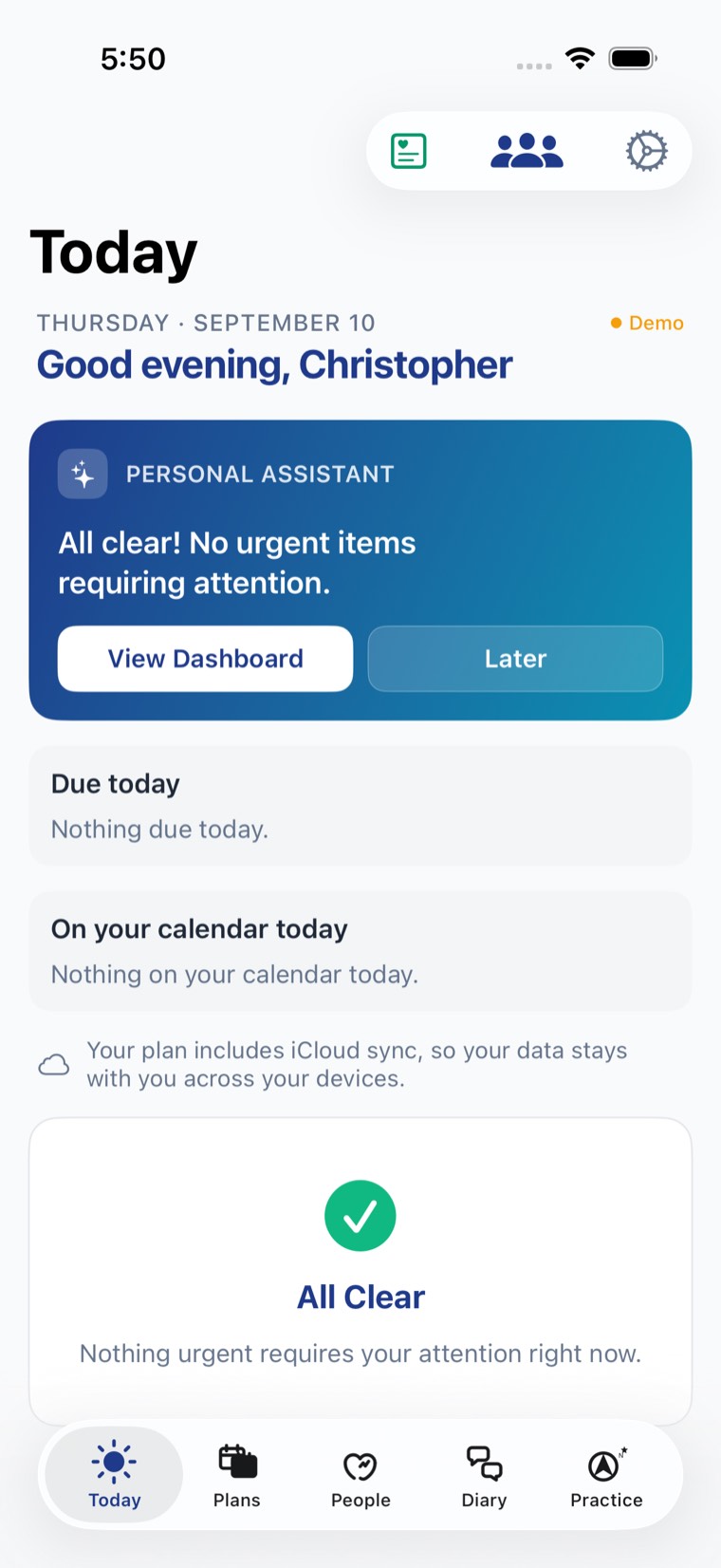
Switching demo mode on or off restarts My Life Practice. That is by design, not a fault.
The app decides which set of data to open once, at launch. That single decision is what keeps sample data and your own data completely separate: they live in different databases and never mix. Restarting is what buys you that guarantee.
My Life Practice asks permission to send nudges: meeting prep, leave now reminders, and prompts to capture what happened once a meeting ends. Decline it if you would rather not decide yet. Notifications can be turned on later in Settings.
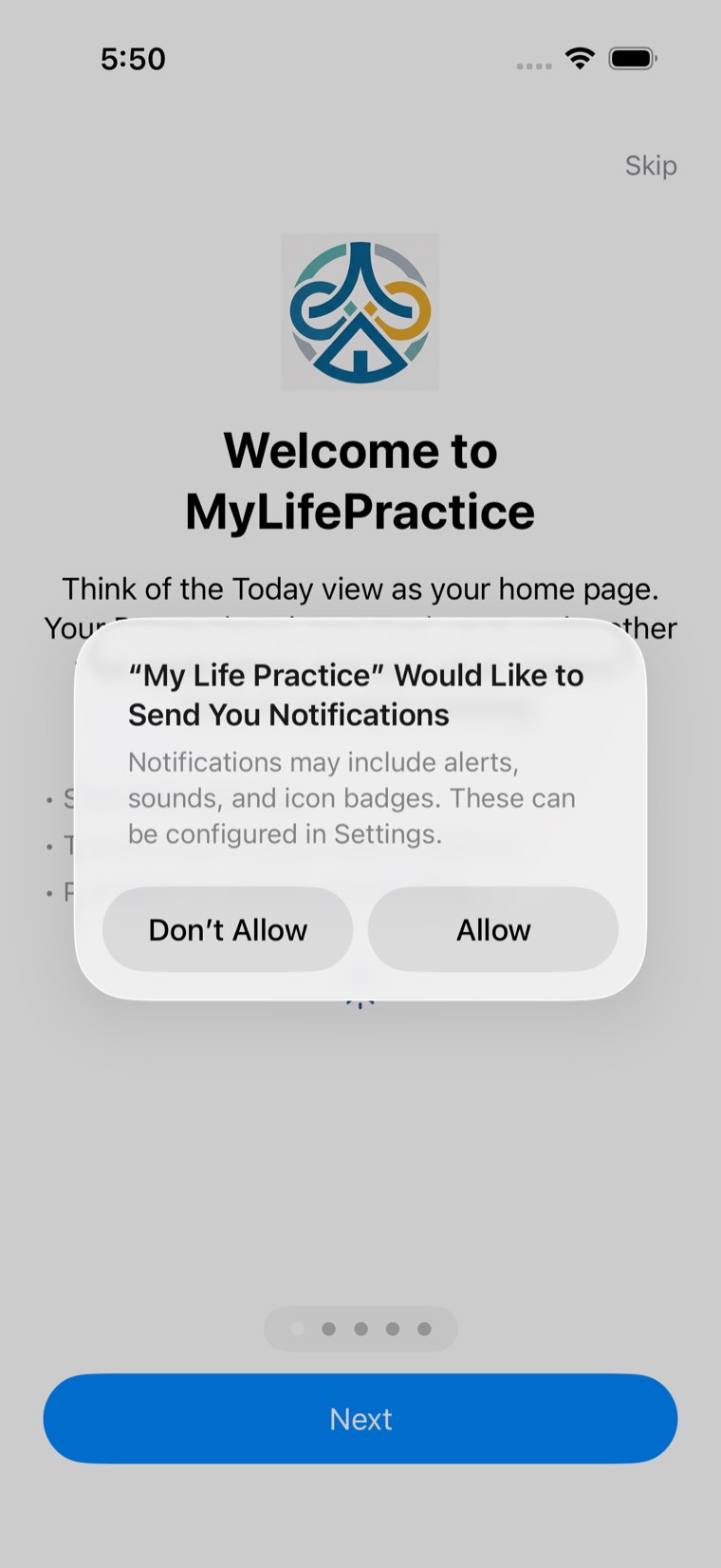
Declining here changes nothing else. Notifications can be turned on later in Settings.
Five screens explaining the Today view. Tap Skip to dismiss it. To see it again at any point, open Settings and choose Guided tour under Help.
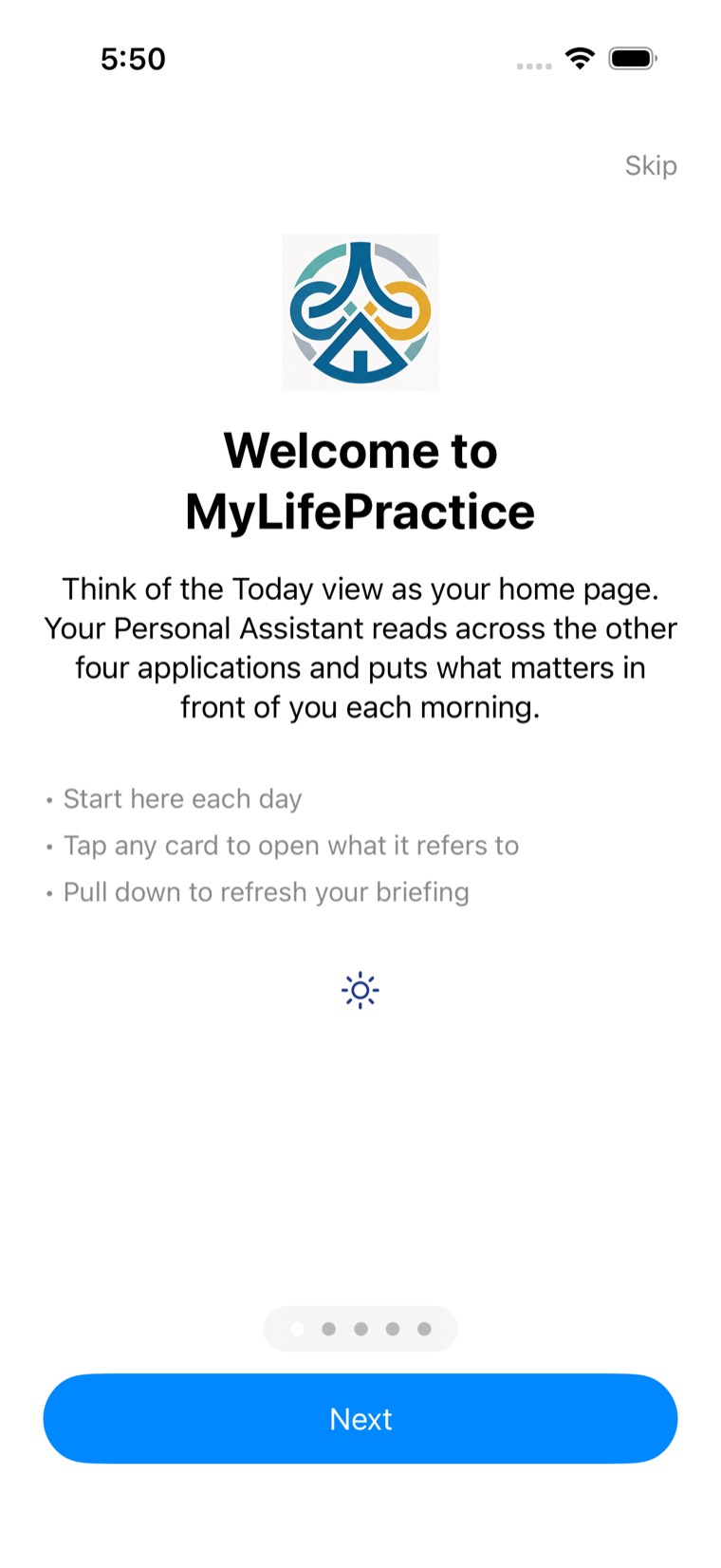
Five screens, and Skip is always available. Settings, then Guided tour under Help, brings it back.
An orange Demo marker sits at the top of the Today view for as long as demo mode is on. If you cannot see it, you are looking at your own data.
Open Settings, turn Demo Mode off, and let the app restart.
Nothing you did in demo mode carries over, and nothing of yours was touched while you were in it.
Set up your profileWrite to us and we will help.
Tell us what you were doing and what you saw. You do not need to send us anything from inside the app.