
Setting up takes four screens and about a minute. Nothing you enter leaves your device while you do it.
Almost nothing. Your first name is the only thing My Life Practice cannot do without. Everything else is optional, and Settings will take it later.
You do not create an account, choose a username, or set a password. There is nothing for us to hold, and nothing for you to remember.
Your first name is the only field this step needs. Last name, email and phone are optional. Your first name is how the app addresses you, so Today opens with a greeting rather than a generic header.

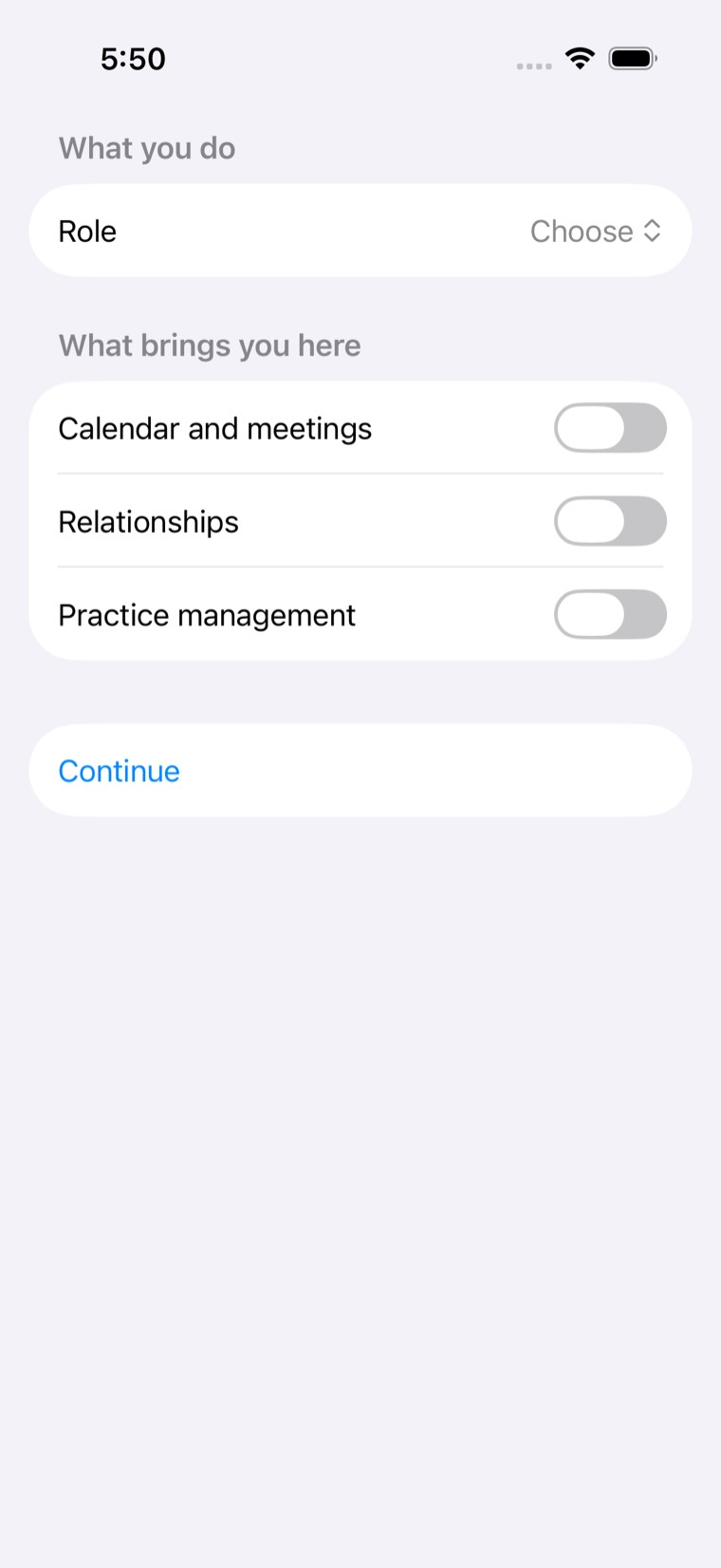
Pick the role that fits closest, then turn on the areas you want help with: calendar and meetings, relationships, practice management. These shape what your Personal Assistant puts in front of you each morning, and you can change them whenever you like.
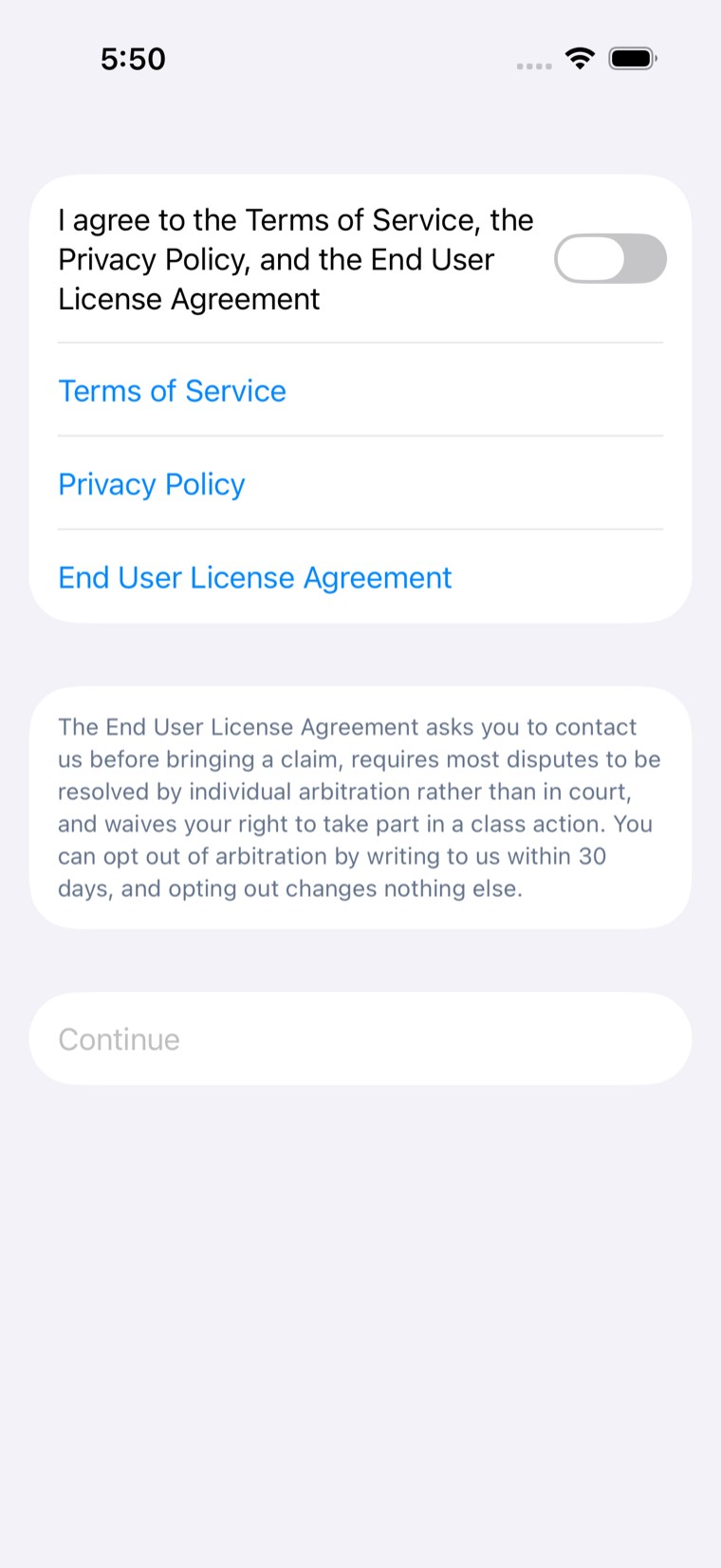
You accept three documents together: the Terms of Service, the Privacy Policy, and the End User License Agreement. Each one opens in your browser from this screen, and Continue stays unavailable until you turn the toggle on.
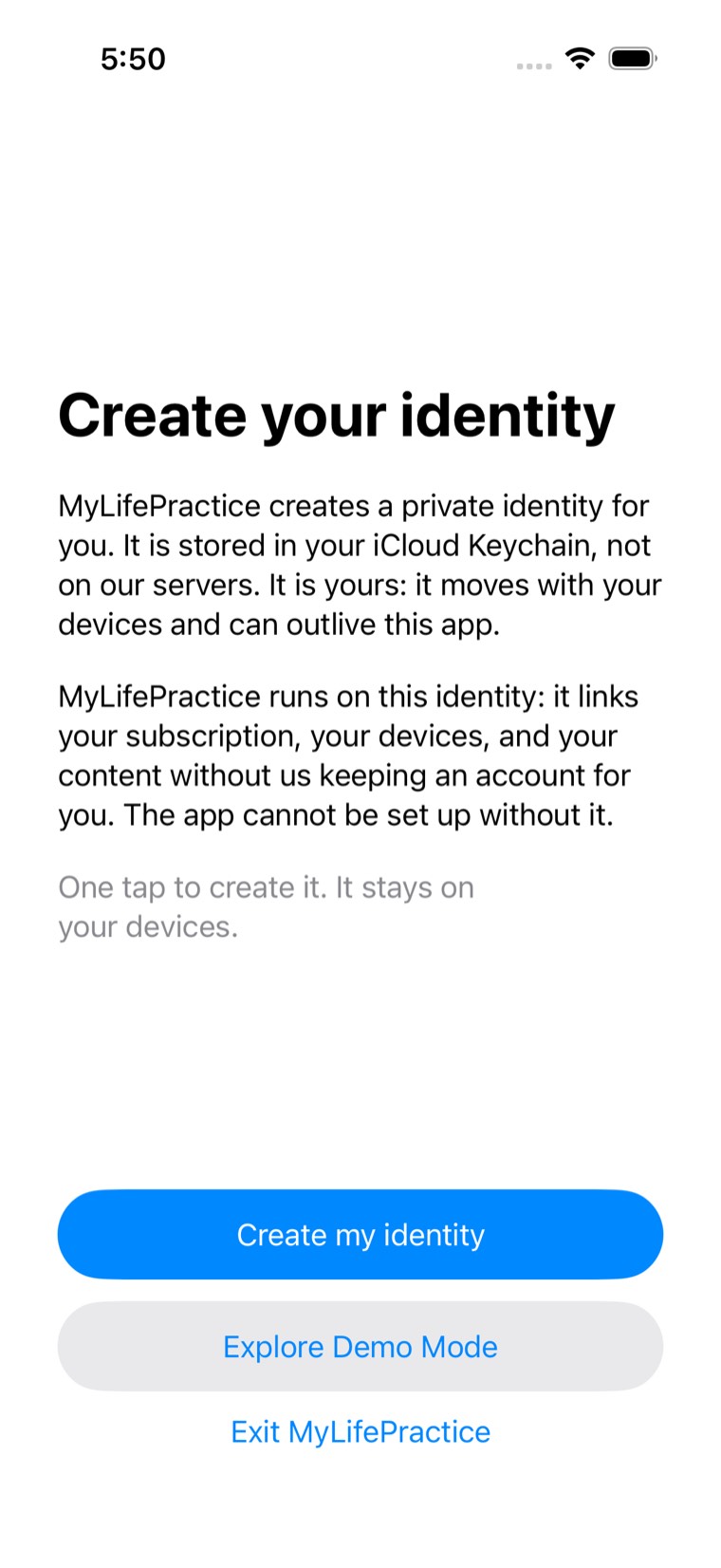
One tap. My Life Practice creates a private identity and stores it in your iCloud Keychain, not on our servers. It links your subscription, your devices and your content without us keeping an account for you. It moves with your devices, and it can outlive the app.
You can read all three before you accept them: the Terms of Service, the Privacy Policy, and the End User License Agreement.
The End User License Agreement includes an arbitration clause and a class action waiver. That is stated on the setup screen itself rather than behind a link, because you should not have to open a document to find out you are agreeing to it.
We record which documents you accepted and which version of each. When one of them changes, My Life Practice asks you about that document only, rather than making you accept all three again.
Once your identity is created, you are shown a recovery phrase. You are shown it once.
Write it down and keep it somewhere safe. If you lose every device you own, that phrase is the only way back to your identity. We cannot show it to you again, because we do not keep a copy of it.
That is the same reason we cannot reset it for you. Holding a copy would mean we could read your identity, and the whole design exists so that we cannot.
Choose Explore Demo Mode on the last setup screen. You get the whole app filled with realistic sample data, and nothing of your own is touched.
Explore demo modeWrite to us and we will help you get set up.
Tell us which step you are on and what you see. You do not need to send us anything from inside the app.