
Five tabs along the bottom, three buttons at the top right. That is the whole map.
Think of Today as your home page. Your Personal Assistant reads across the other four applications and puts what matters in front of you each morning.
It shows the date and a greeting, a briefing card from your Personal Assistant, what is due today, what is on your calendar today, and an all clear when there is nothing that needs you.
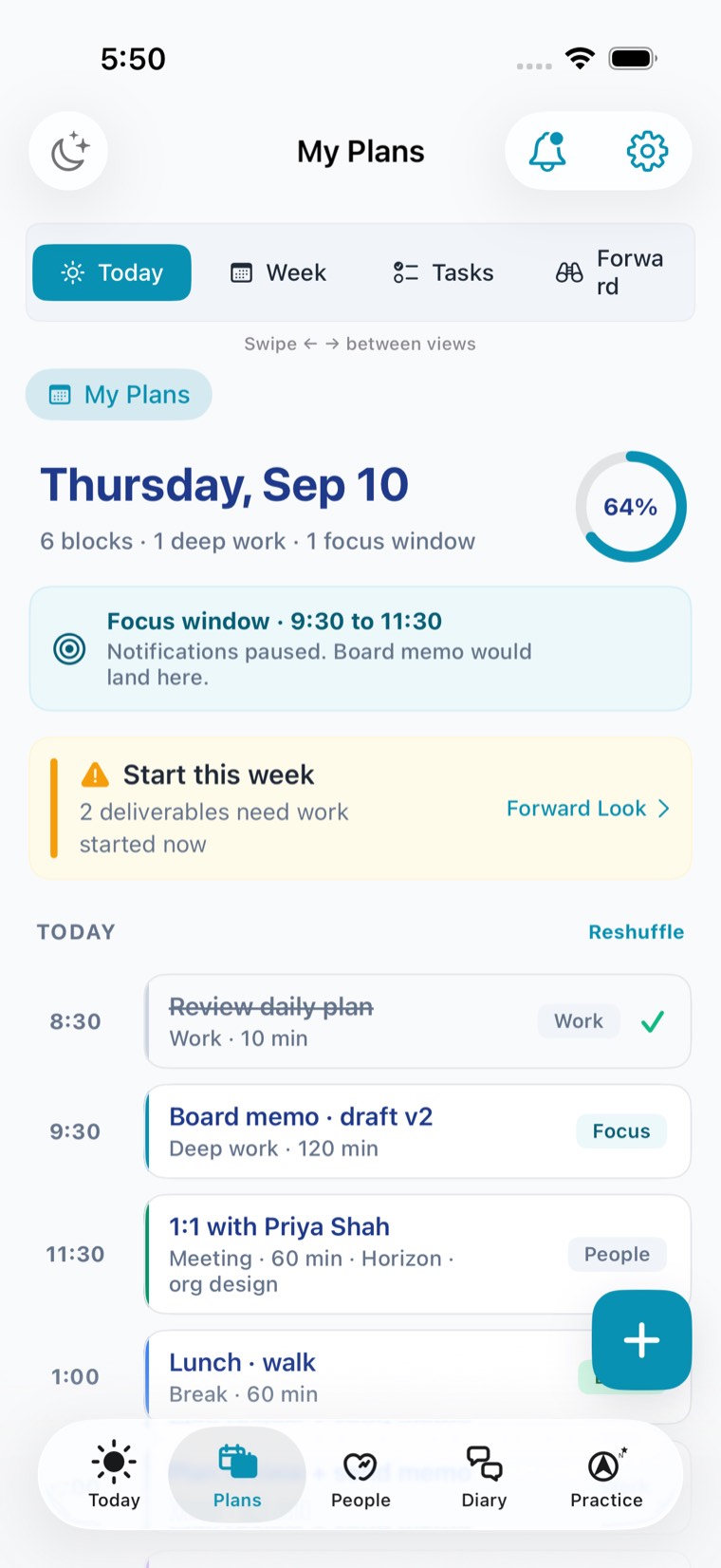
Today is the quick answer to "what do I have going on today?" It lists your meetings and nothing around them. The detail is on Plans: the prep and travel blocks around each meeting, your focus time, and the rest of the week.
Pull down to refresh your briefing. Tap any card to open whatever it refers to.
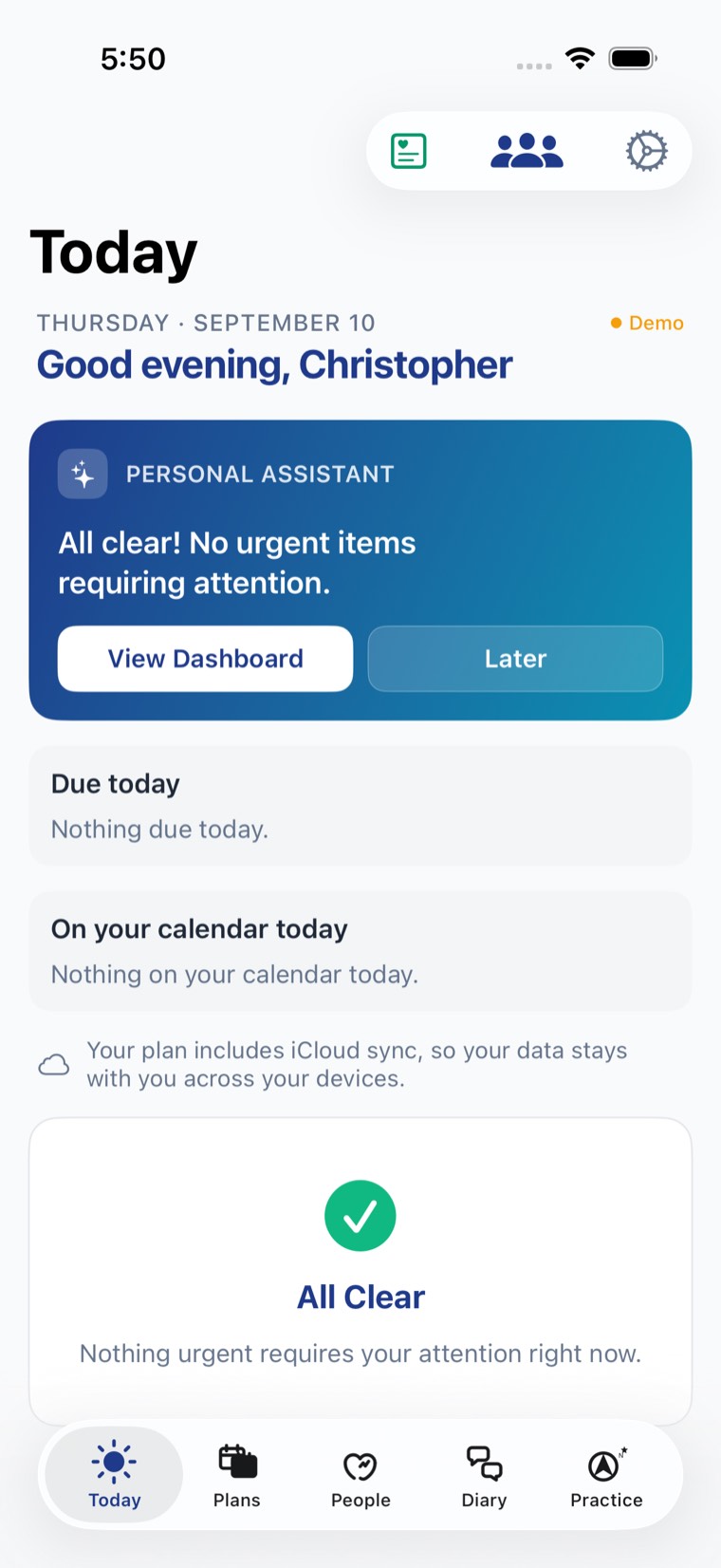
Your briefing and the day ahead. Start here each morning.
Your calendars, meetings and the time around them. Prep blocks, travel and the work behind your goals.
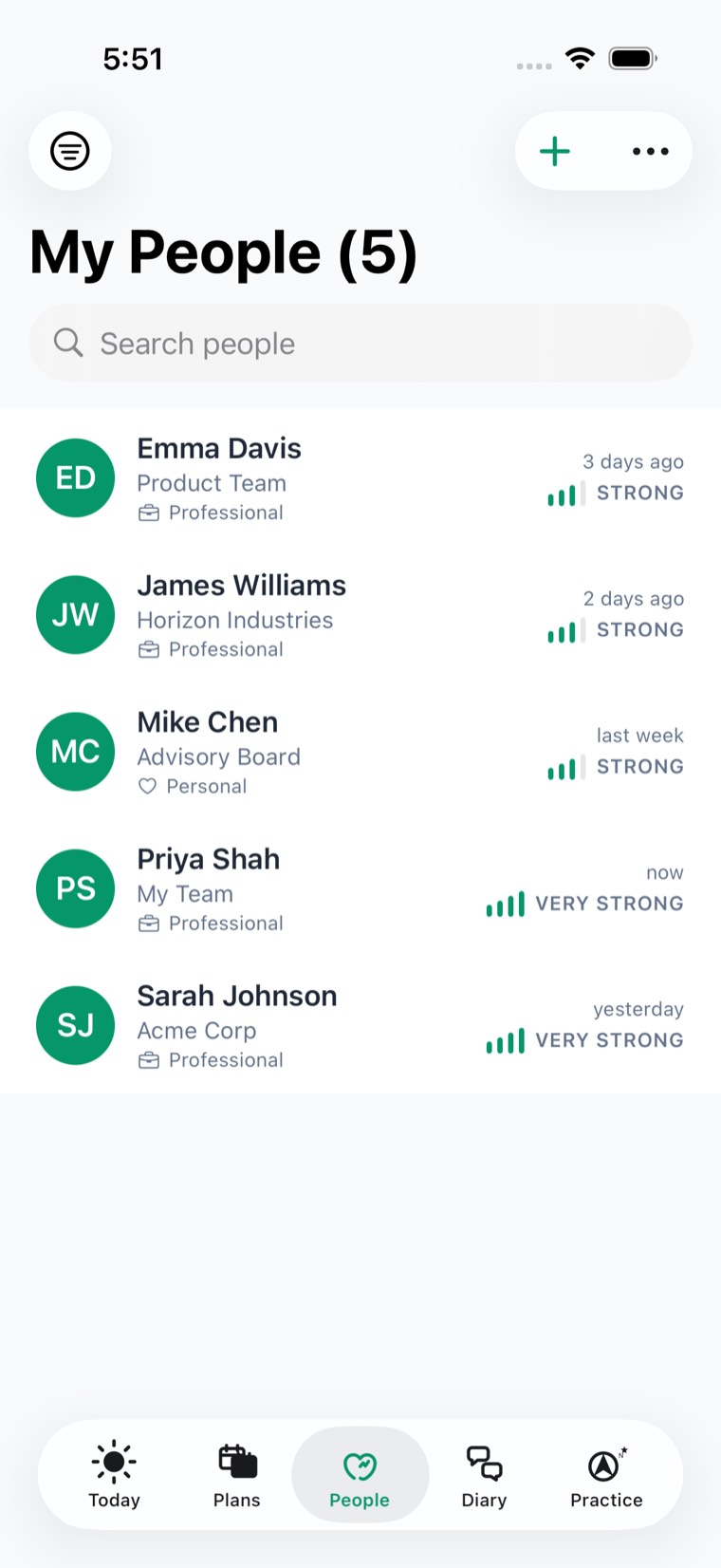
The relationships you are managing, what you know about each, and who you have not spoken to in a while.
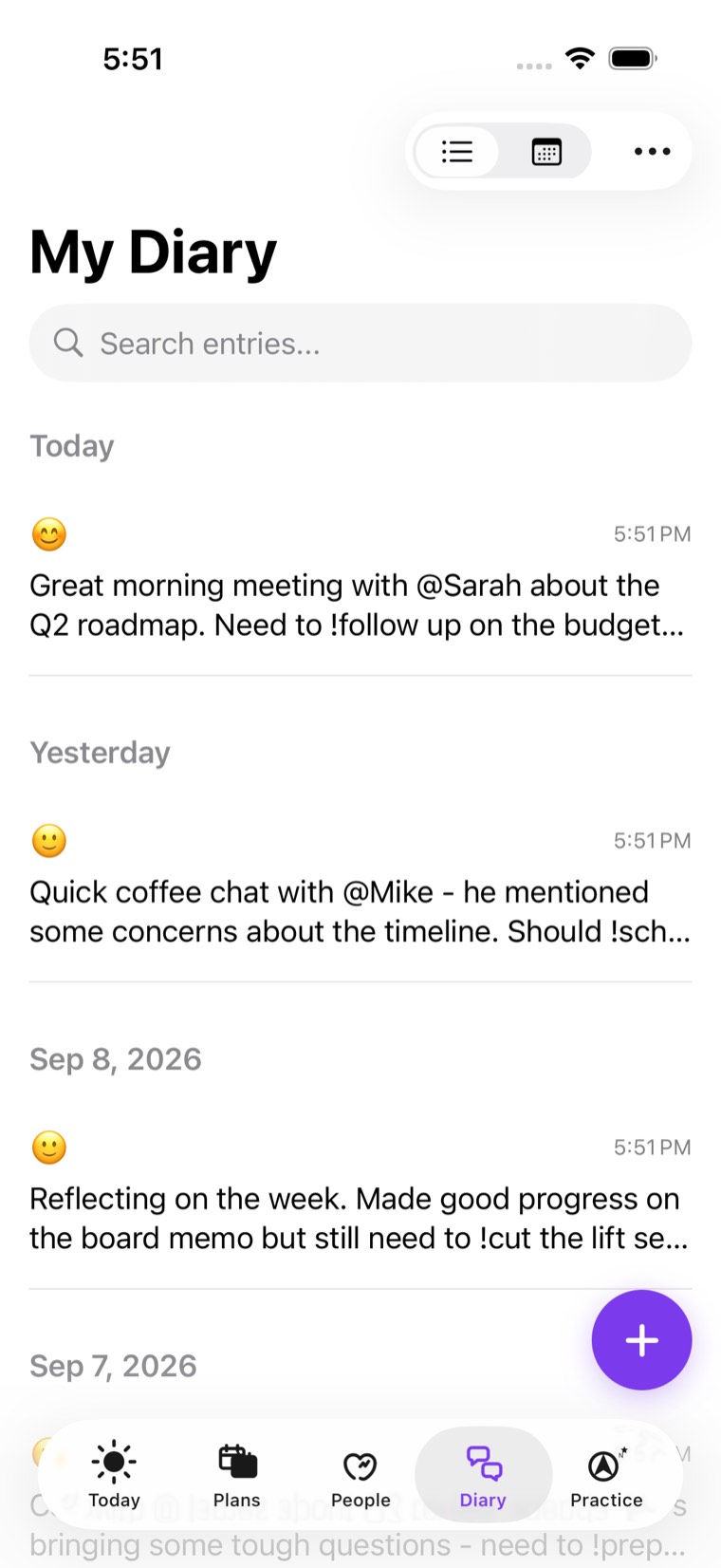
What happened, captured as you go. Notes, voice capture and reflection.
The business of your practice: clients, engagements and deliverables.
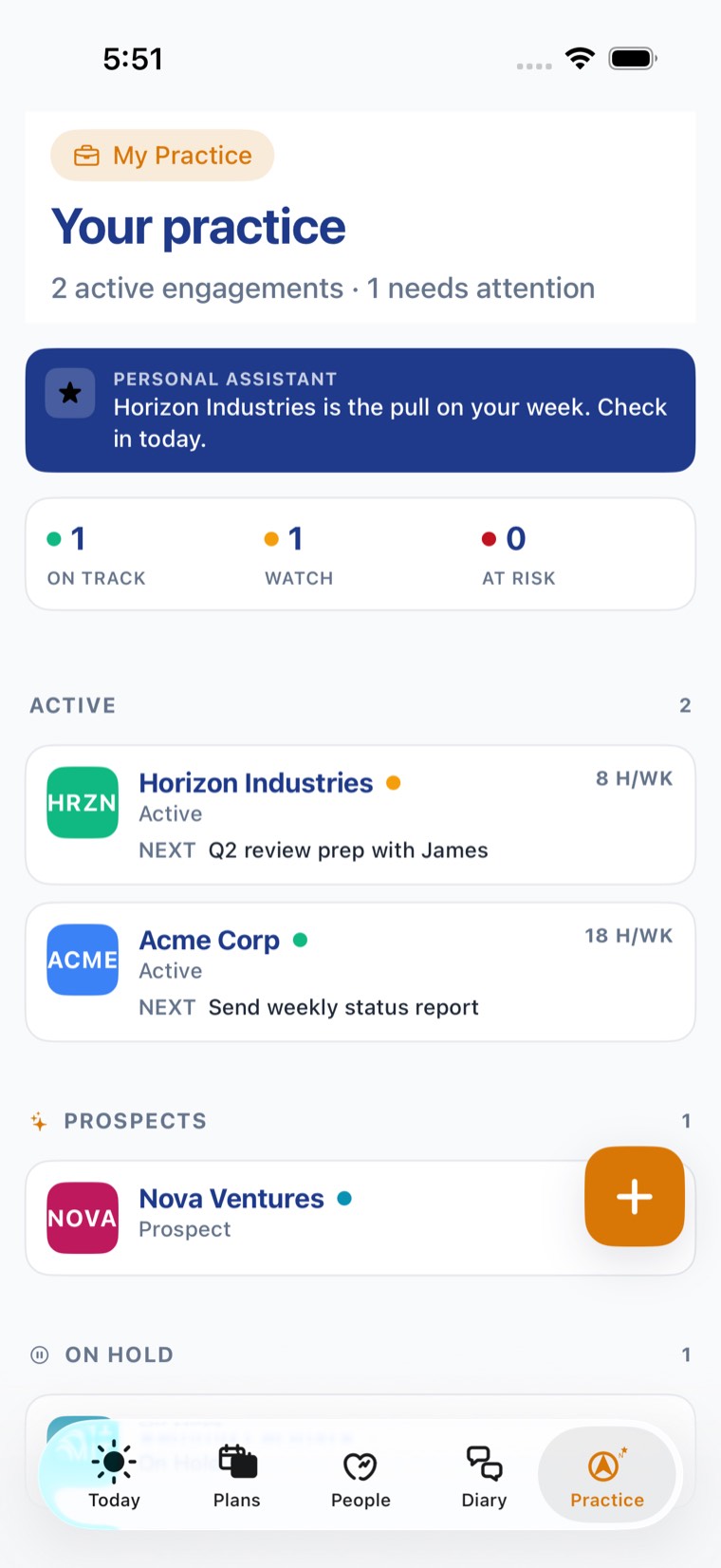
These sit at the top right of every screen, and they open over whatever you were looking at rather than taking you away from it.
The heart icon opens Nurturing: the relationships you have decided to invest in, and what you have planned for each.
The people icon opens Virtual Team: your Personal Assistant and the specialists behind it.
The gear icon opens Settings, where everything else lives.
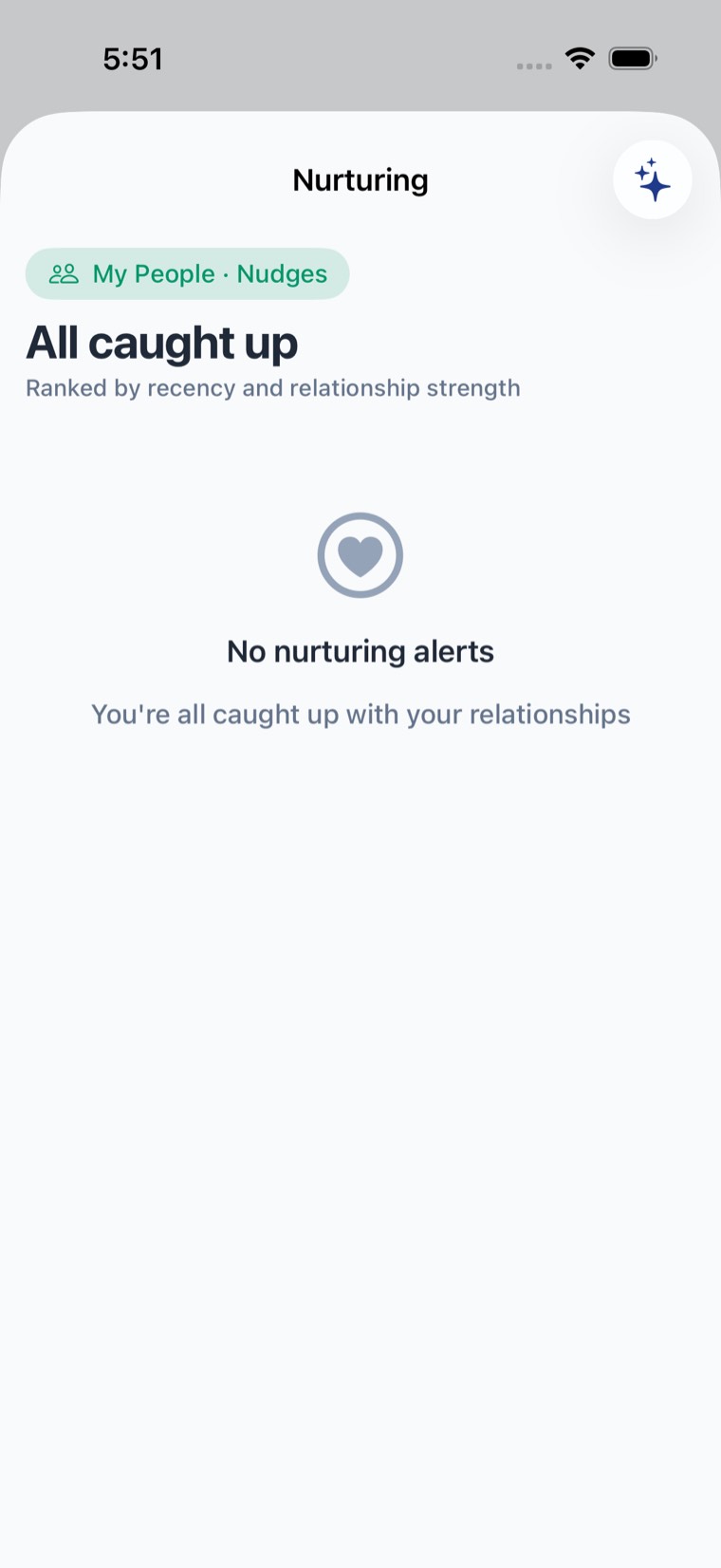
The heart button: who has gone quiet, and for how long.
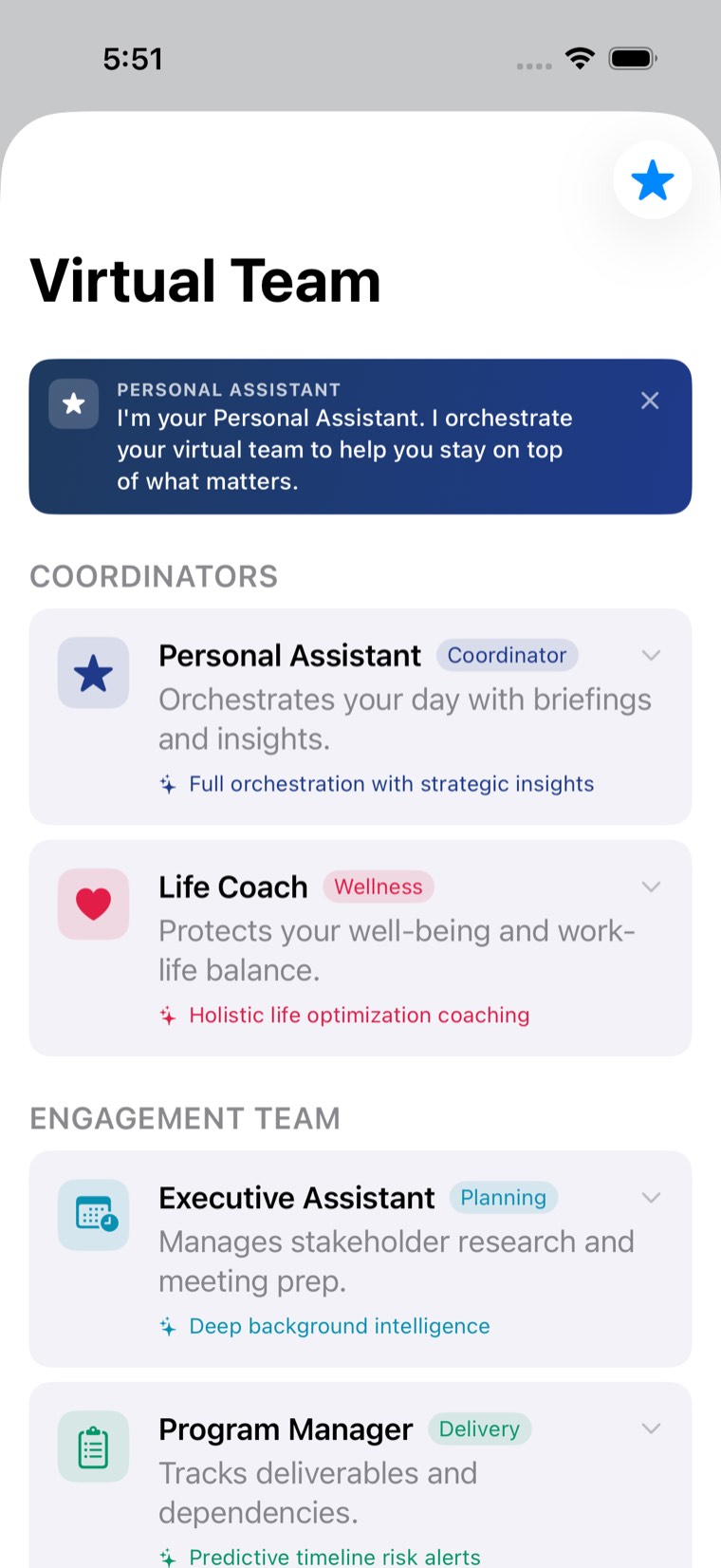
The people button: the team working behind your day.
Demo mode fills all five tabs with realistic sample data, so you can walk the whole app without connecting a calendar first.
Explore demo modeWrite to us and we will point you at the right screen.
Tell us what you were trying to find. You do not need to send us anything from inside the app.