
Tap the gear icon at the top right of any screen. Settings runs several screens deep, so here is what is in each section and roughly where to find it.
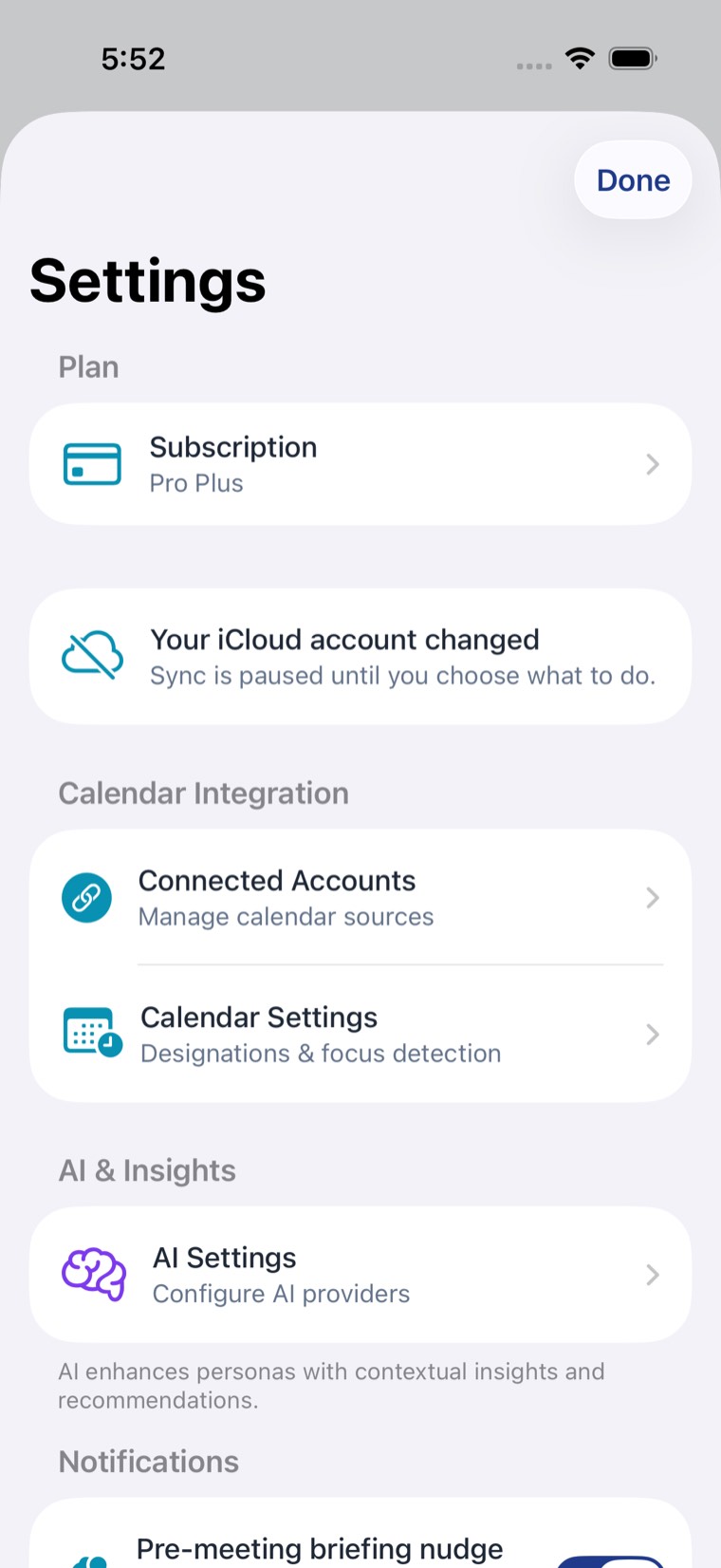
Settings, from the gear at the top of any screen. Each section below is one row here.
Your data always stays on this device. Sync copies it to your private iCloud database so your other devices can see it.
This section shows your sync status, the sync switch itself, and Clear Cloud Data, which removes the copy held in iCloud without touching what is on your device.
Turning sync off takes effect at the next launch, and it never deletes anything.
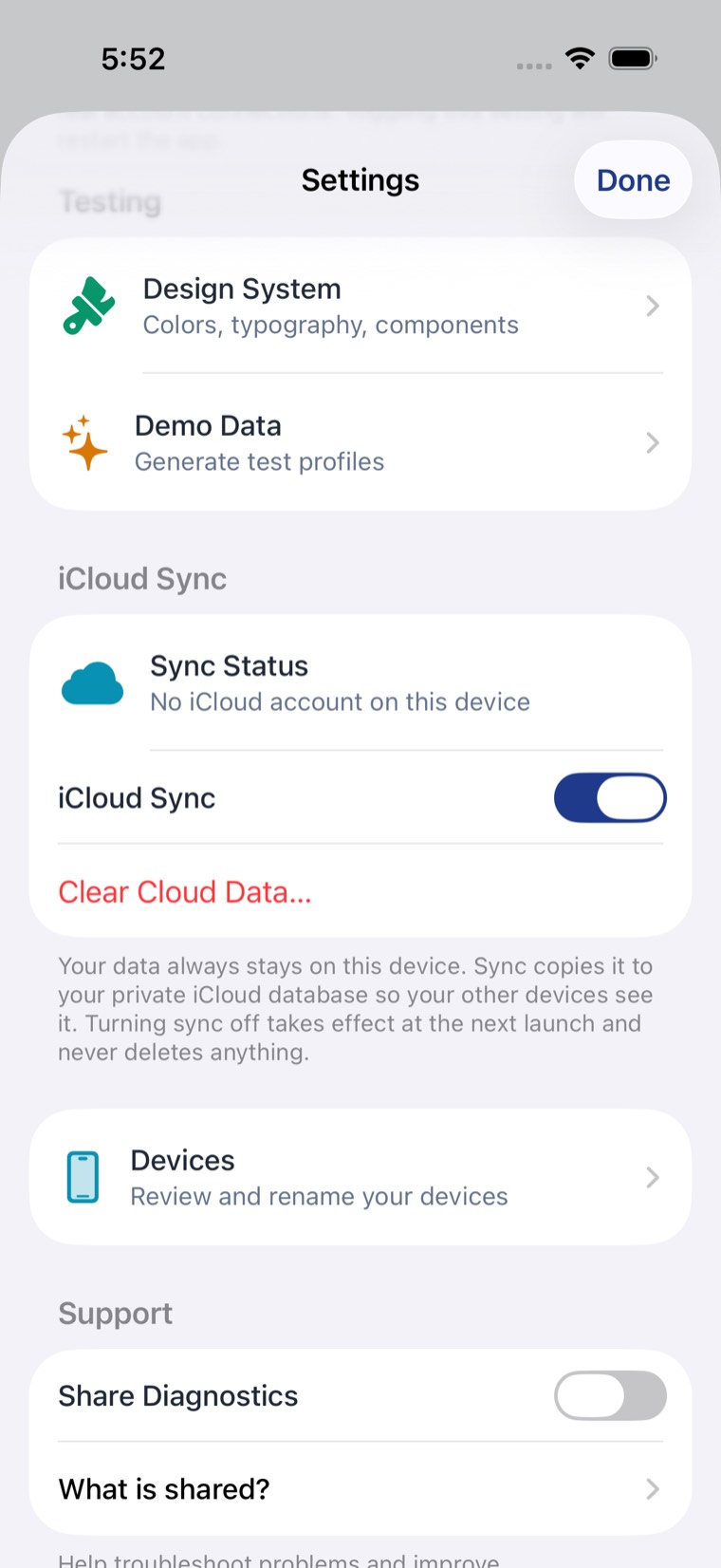
Devices lists everything signed in to your identity, and lets you rename them so you can tell one iPad from another.
Storage breaks down what is using space, and gives you a way to reclaim some.
Share Diagnostics is off, and stays off until you turn it on. When it is on, My Life Practice sends technical logs that help us find problems.
What is shared? sits directly underneath it and lists exactly what those logs contain, in plain language. Read it before you decide, not after.
Export My Data gives you a complete, readable copy of everything.
Import From a Backup adds rows from an exported file. Nothing is replaced, and nothing is deleted.
Your subscription is billed by Apple, not by us, so it is changed in the same place as every other subscription on your device: open the iOS Settings app, tap your name at the top, then Subscriptions, then My Life Practice.
From there you can move between plans or cancel. A cancellation takes effect at the end of the period you have already paid for, and you keep the plan you are on until then.
Because Apple handles the billing, we cannot process a refund. Those requests go through Apple too, from your purchase history.
Cancelling does not delete anything. Your content stays on your device, and the features your new plan does not include become unavailable rather than removing what they produced.
At the bottom of Settings you will find your app version and build number, which are the two things worth quoting if you ever write to us about a problem.
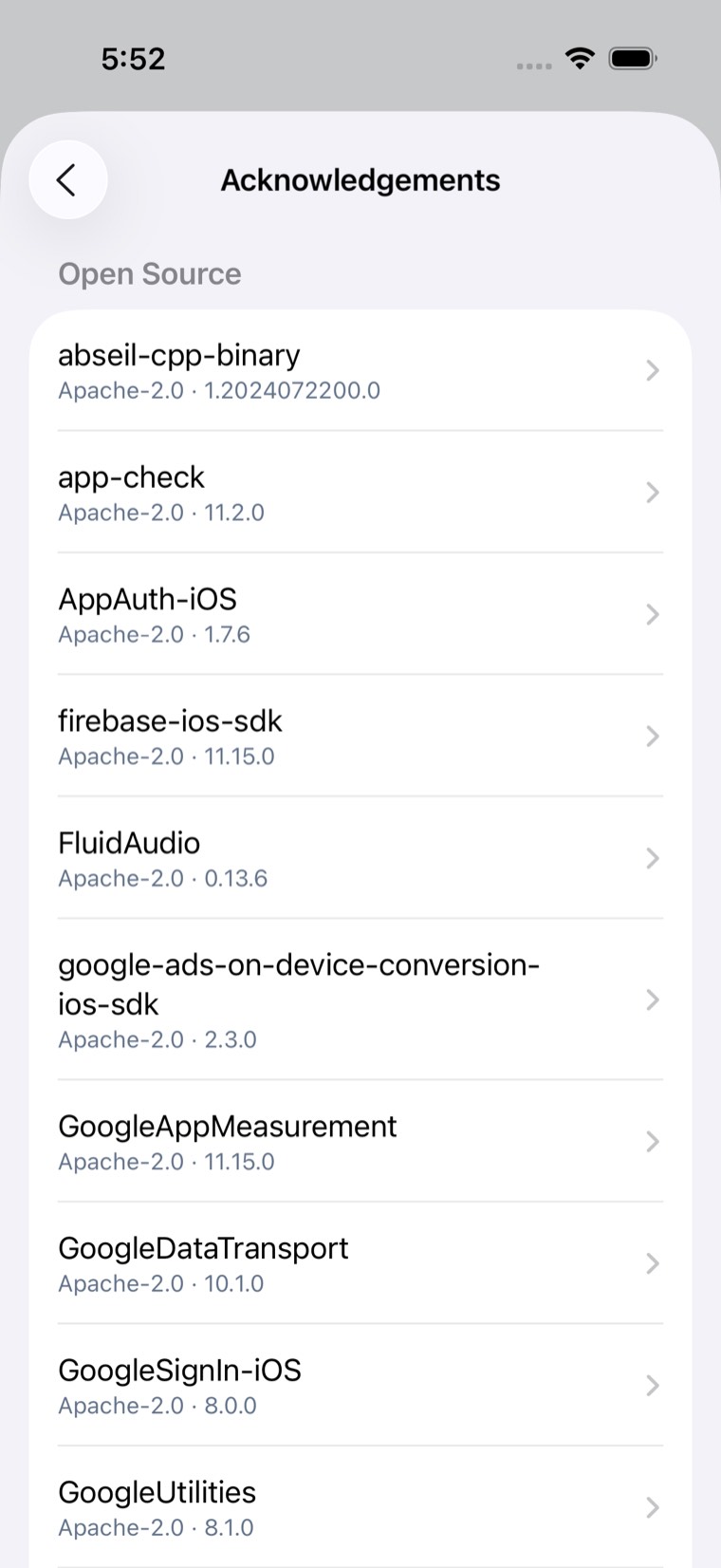
Acknowledgements lists the open source software My Life Practice is built on, with the full license text for each one.
There is also a link to the Terms of Service, and the copyright notice.
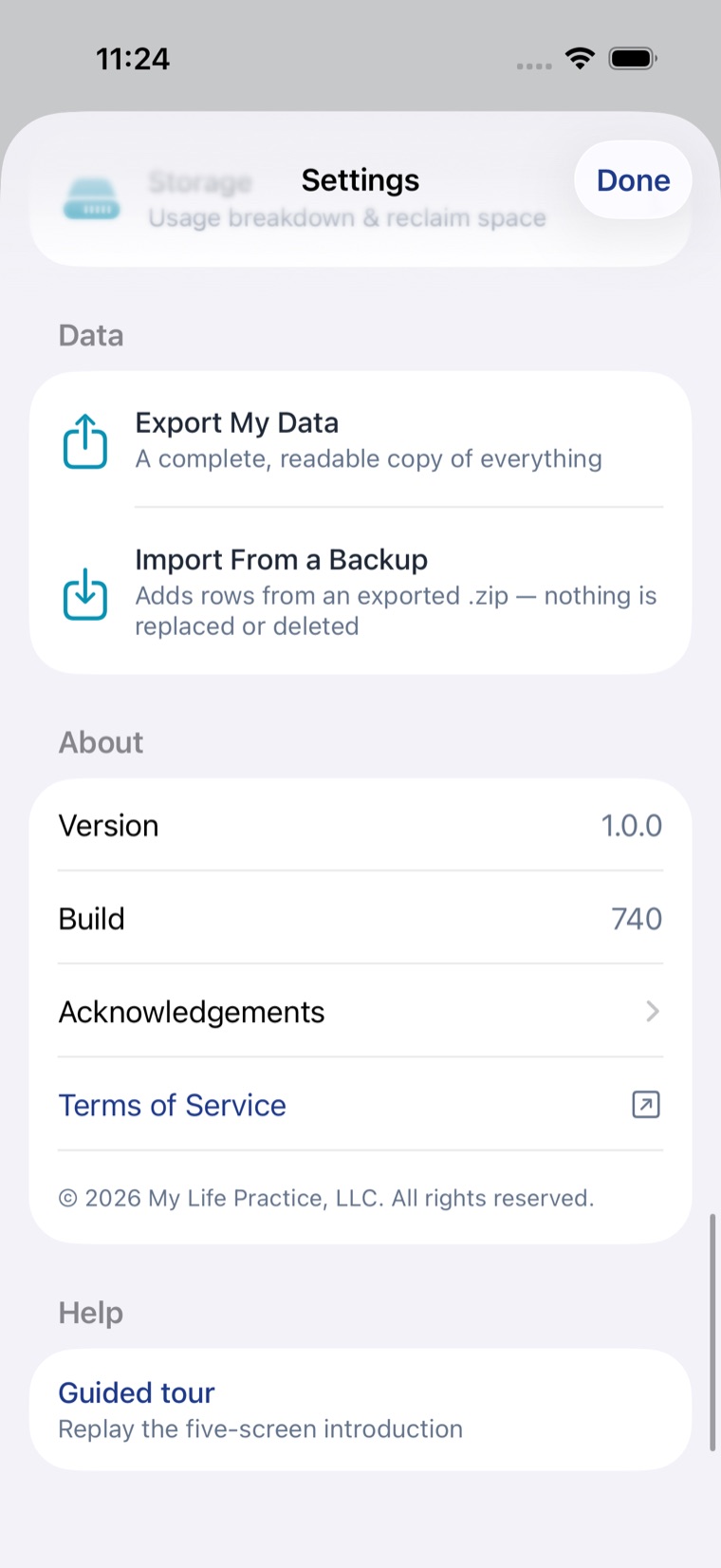
Guided tour replays the five screen introduction you saw the first time you opened the app. It is there whenever you want it, not only on the first launch.
Find your way aroundWrite to us and we will tell you which setting you want.
For anything about your own data specifically, write to data-rights@mylifepractice.com instead.